Features/Through the day
Pages without a date.
Kept at the back.
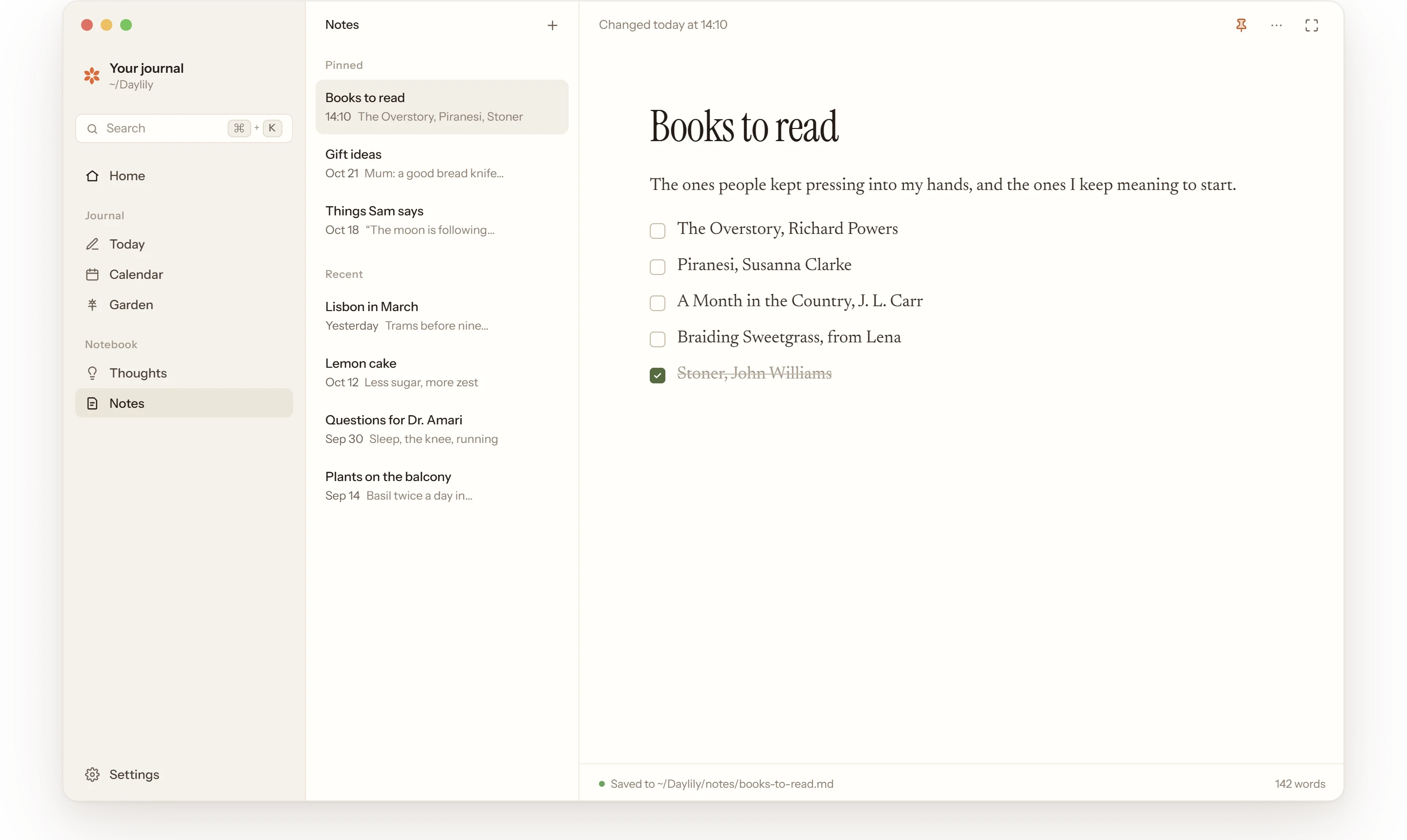
Books to read, gift ideas, a recipe you keep adjusting, plans for a trip, questions for the doctor. Notes are the back pages of your journal: pages you keep and change as often as you like.
How it works
Pages you come back to.
Notes sits in the sidebar’s Notebook, under Thoughts. Search finds them too, beside your days and thoughts.
 01
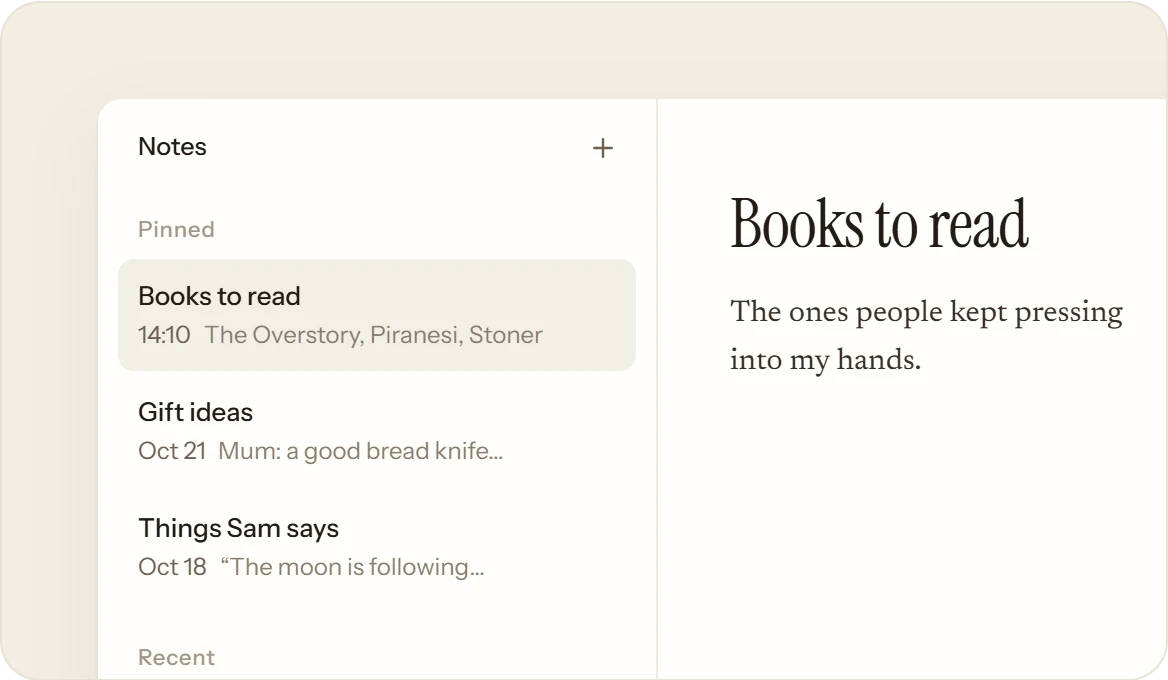
01One list, pinned on top.
Your notes are listed beside the one that’s open, the last changed first. Pin the ones you open most to keep them on top, and press + to start a new one.
 02
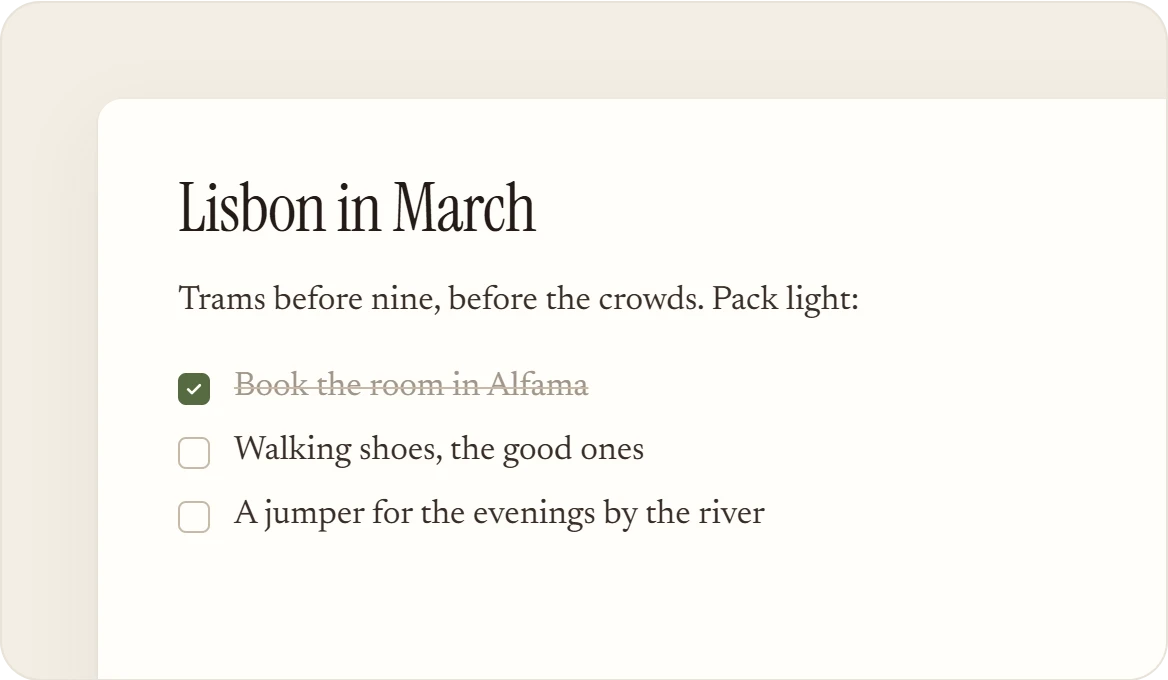
02Write it like the page.
A note uses the same editor as your daily page: headings, lists, checklists, quotes and images. Tick off a packing list, or change a recipe each time you bake it.
 03
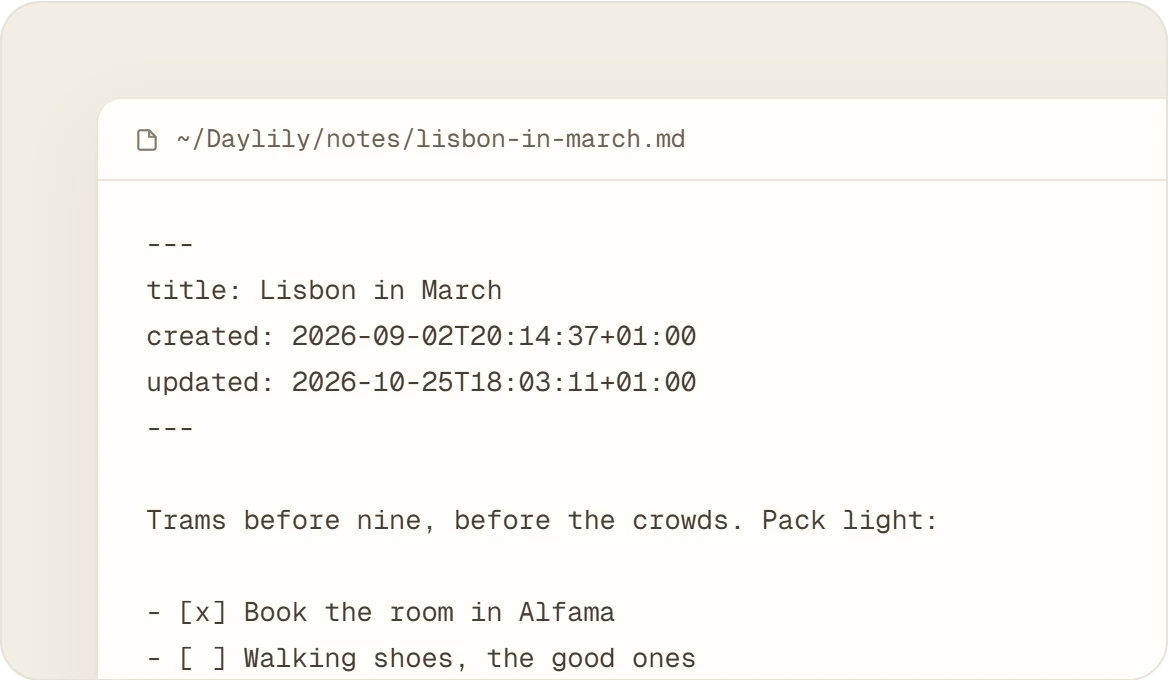
03A plain file, named from its title.
Each note is a markdown file in your journal’s notes folder. “Lisbon in March” becomes lisbon-in-march.md, so it opens in any editor, today or in twenty years.
 04
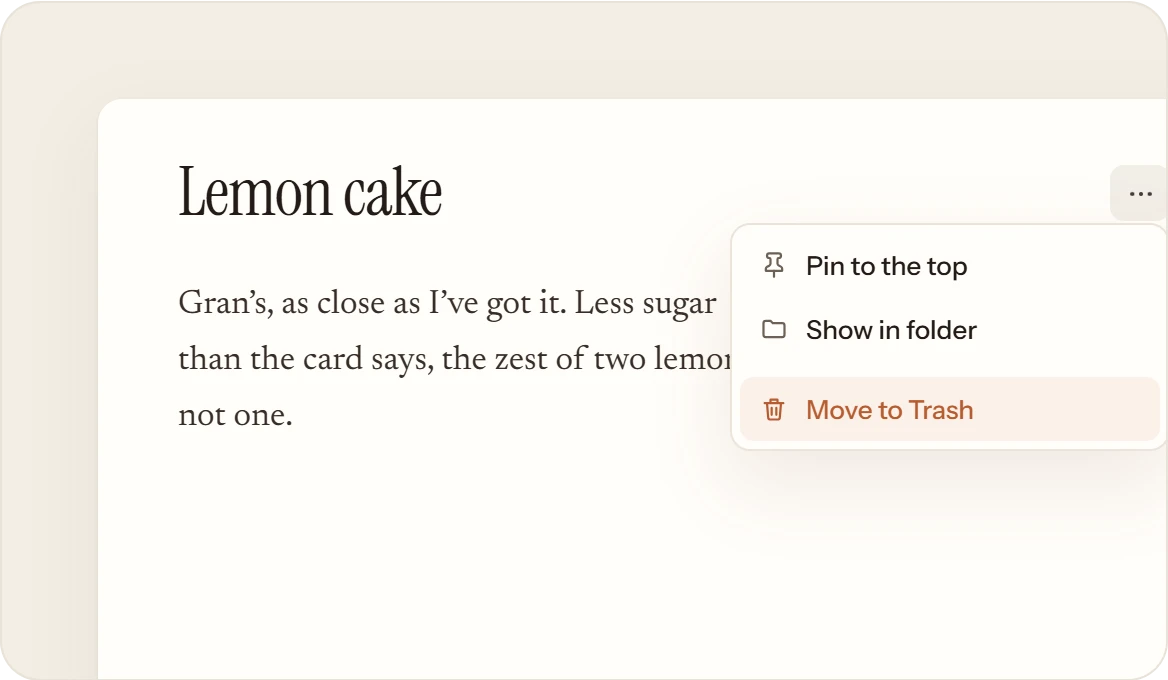
04To the Trash, when you’re done.
When a list has done its job, choose Move to Trash from the ⋯ menu. The file goes to your computer’s Trash, where you can restore it. Daylily never removes a note on its own.
What it isn’t
Not a knowledge base.
Notes are the few pages you keep coming back to. Your day still belongs on its page, in the evening, in your own words.
- Folders, tags or links between notes. The folder opens in Obsidian for that.
- Sealed, or a flower. A note has no date, so it never seals and grows nothing in the garden.
- Your daily page. What happened today still goes on today’s page.